blog/tutorials·Sep 11, 2026·7 min·by the eroq team
Image to image editing with AI — change one thing, keep the rest
Work from a reference photo — what holds and what changes, why the result keeps the reference's frame, how to describe only the edit, and how to iterate on a render.
Most prompts ask a model to invent a picture. Image-to-image asks it to start from one you already have. That is a different job with different rules, and the biggest of them is that you stop describing the subject and start describing the change. Here is how references behave in the Image studio, including the two behaviors that surprise people on their first try.
What a reference actually does
Attach a photo to an image render and the engine has something to work from instead of a blank canvas. Practically, that splits into two modes, and the Image studio gives each its own tab: Create and Edit.
Edit works on Picture 1, the first picture you add. The engine modifies that picture rather than redrawing its subject from scratch, which is why identity survives: the face, the object, the proportions are not being re-imagined from your adjectives, they are the material being worked on.
Pictures in Create behave differently, and so do any extra pictures beside Picture 1 in Edit. They act as guidance — aesthetic direction, a sense of palette and treatment — rather than as a single thing being edited. That is useful for a look, and it is the wrong tool when a specific face or object has to come through intact.
The practical rule is short: when identity matters, open Edit and hand the model one clean picture. The image-to-image and reference image glossary entries have the general definitions.
One more thing changes in Edit: the model picker lists only the engines that read pictures, and because an edit works from the picture you handed over, the finish comes from the source.
Watch how many references you are actually sending
This is where people trip. References do not only come from the Picture button. Any @mentioned Element or Character contributes its picture to the same budget, and so does a previous render. So an edit whose prompt mentions a character and a style Element with a picture on it hands the engine three pictures, not one, and the two extra ones pull the result toward guidance however carefully you worded it.
Each engine reads a fixed number of pictures per render, and the counter in the composer shows how many you have used. Count them before you blame the prompt. Your own pictures are numbered, so the prompt can point at one by name: @Picture 2.
Describe the change, not the subject
With a reference in place, re-describing what is already in the picture is worse than useless: it gives the engine a second, vaguer version of the subject to reconcile with the one it can see.
- Bad: a woman in her thirties with short dark curls wearing a leather jacket, standing in a city street at night, neon signs behind her, cinematic
- Good: change the setting to a rain-wet city street at night, neon signs reflecting in the puddles behind her, keep the jacket and the pose
Say what is new, say what must stay, and stop. Three phrasings that work reliably:
- Setting swap. "Move her to a sunlit kitchen, morning light through a window on the left, everything else unchanged."
- Wardrobe or prop change. "Replace the leather jacket with a cream knit sweater, same pose, same light."
- Light and mood change. "Relight the scene with hard low sun from the right, long shadow across the floor, warm palette."
Negative prompts and CFG still apply in this mode, and they are worth using: a short negative list keeps the edit from dragging in artifacts, and nudging CFG down usually produces a gentler change than nudging it up produces a faithful one.
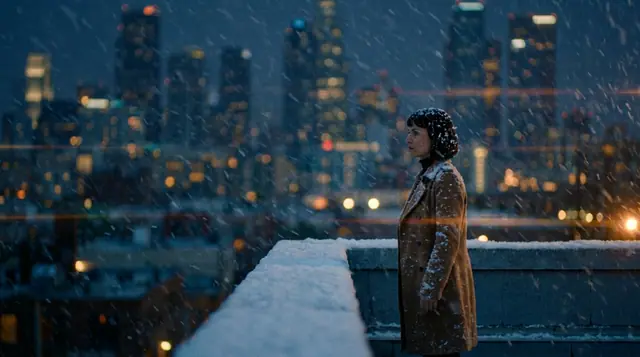
Keep the subject and the pose exactly as they are, and move the scene to a narrow alley after rain at night, neon signs bleeding pink and cyan into the puddles, steam drifting from a vent behind her, hard rim light from the sign on the left, deep shadow everywhere else, cold and electric.
Why the result keeps the reference's shape
Attach a picture, render, and you get back something shaped like your reference. Nothing is broken.
As soon as one of your own pictures rides, in Edit or in Create, the Format setting starts on Retain: the source already has a frame, and the result inherits it. The API does the same with aspect: "retain", its default on an edit.
You can override it: pick 1:1 or 16:9 in Format and the result takes that frame instead (a few edit engines size the output from the source and offer Retain only). When you need a very different shape from the same subject, a fresh render with the subject described or @mentioned as a Character is often cleaner, and you pick the format there. The aspect ratios guide covers the five formats and what each is for.
Iterating on your own renders
The loop that makes this worth learning: a render you already made can be the reference for the next one. The most recent image renders are @-mentionable directly in the prompt box, so you can pull yesterday's keeper into today's prompt without downloading and re-uploading anything. The picture joins the references and the prompt notes that you are continuing from a previous render.
That gives you a chain — establish, then adjust, then adjust again — where each step costs 10 credits on eroq's own engines and starts from a known-good frame rather than from luck. It is a much cheaper way to arrive somewhere specific than re-rolling a text prompt and hoping the dice land.
Two adjacent controls are worth keeping straight:
- Remix reloads a render's recipe — the prompt, the model, the settings — back into the tool. It does not carry the picture. Use it to change a setting and re-render the same idea. The seeds and remix workflow has that loop in full.
- A reference carries the picture and not the recipe. Use it to change the world around something that has to stay recognizable.
Using both at once is normal: Remix to get the settings back, then attach or mention the previous render to keep the subject.
Where image-to-image stops
Being clear about the edges saves a lot of prompting.
- There is no brush and no mask. You cannot paint a region and restrict the edit to it. The change is described in words, so ask for one change at a time and expect the rest of the frame to shift slightly.
- There is no image upscaler and no retouching tool. Renders come out at the model's native size and that is the file.
- There is no face swap, and no real identifiable people. Putting someone's face into a scene without their consent is prohibited across the platform, references included.
- There are no layers, crops or type tools for stills. Composites, crops, type and color grading happen in your own image editor.
When the next step is motion rather than another still, an image can go straight to the video tool as an image-to-video source — the Animate action on a render does exactly that, and the image to video guide picks up from there.
FAQ
How many reference photos should I attach?
One, in the Edit tab, whenever a specific face or object has to survive the render: Picture 1 is the one being edited. Extra pictures behave as style guidance instead, which is useful for a look and unreliable for identity. Each engine reads a fixed number in total, counting the pictures contributed by any Element or Character you mention.
Why does my result keep the shape of my reference?
Because Format starts on Retain whenever one of your own pictures rides, so the result inherits the source's frame. Pick a fixed ratio in Format to override it, or render fresh without a reference when the format matters more than the exact subject.
Can I edit just one part of the image?
Not with a mask or a brush, since neither exists. You describe the change in words and keep it to one change per render, naming what should stay the same, then chain a second edit on top of the result if you need another.
Can I use a previous render as the reference?
Yes. Recent image renders are @-mentionable straight from the prompt box, so a keeper becomes the starting point for the next render without any downloading or re-uploading, at the usual 10 credits on eroq's own engines.
Attach one clean picture, describe only what changes, and chain from there — open the Image studio.
 Image
ImageMake it in eroq
Render it in Image
Everything above happens in the studio: same engines, same settings, rendered on your click.
Prompts from this article
40 free credits · no card · private mode on every account