blog/guides·Sep 2, 2026·6 min·by the eroq team
AI image aspect ratios — pick the frame before you render
The five image formats on eroq, what each one is really for, why a native ratio composes differently from a crop, and how to choose before you render.
Every image render starts with a decision you cannot undo later: the shape of the frame. The Image studio offers five formats — one square, two portraits, two landscapes — and the model composes for whichever one is selected before it draws a single pixel. There is no crop step inside eroq and no image upscaler, so the frame is a choice you make at the top of the job rather than a repair you make at the bottom.
The five formats and what they render at
Each ratio maps to a native resolution on the diffusion grid, which is why off-grid sizes are not offered at all:
- 1:1 — 1024 × 1024. The square. Profile pictures, feed posts, album art, model cards, anything that has to survive being displayed at 80 pixels wide.
- 3:4 — 896 × 1152. The standing portrait. People at full height, book covers, poster layouts, product packshots that are taller than they are wide.
- 4:3 — 1152 × 896. The classic landscape. Editorial photography, interiors, still life, anything that used to be shot on a camera rather than a phone.
- 9:16 — 768 × 1344. The phone frame. Story backgrounds, vertical ad stills, cover art for a short, anything that fills a screen held upright.
- 16:9 — 1344 × 768. Widescreen. Thumbnails, headers, hero images, and the start frame for a clip you plan to animate later.
All five cost the same on a given model: 10 credits an image on Krea2, and every other model keeps its own price at every format. There is no premium for a wide frame and no discount for a square one, which removes the only bad reason to pick the wrong shape.
A native ratio is not a crop
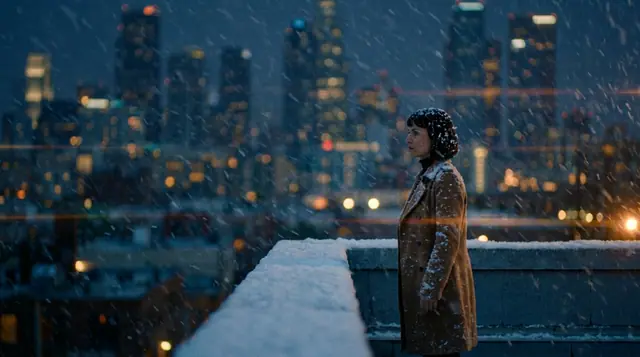
This is the part people learn the expensive way. If you render a square and then crop it to 16:9 in your editor, you get a square composition with its top and bottom removed — a head that was centered is now centered in a letterbox, and roughly 40% of the pixels you paid for are in the bin. Render at 16:9 and the model knows from the start that it has horizontal room: it places the subject off-center, lets the background run out to the sides, and puts the light where a wide frame wants it.
The same is true going the other way. A portrait is not a landscape stood on its end. Ask for 9:16 and the model stacks the scene — foreground at the bottom, subject in the middle third, sky or ceiling above — because that is what tall frames do. Ask for 16:9 and it spreads.
So the useful habit is to decide the destination first and set the format second, before you spend a word on the prompt. The aspect ratio glossary entry has the general definition; what matters here is that on eroq the ratio is a real parameter on the image models, not a hint you type into the prompt and hope for.
Choosing by destination
- Profile picture, avatar, app icon, album cover — 1:1. It is the only format that is never cropped by anyone.
- YouTube thumbnail, site hero, blog header, presentation slide — 16:9.
- TikTok and Reels stills, story backgrounds, vertical ads, phone wallpapers — 9:16.
- Book cover, poster, standing figure, tall packaging — 3:4.
- Editorial and documentary stills, interiors, food, anything with a horizon — 4:3.
- A still that will become a clip — match the video. A video ad in the Ads Studio takes the frame of the place it runs, 9:16 for TikTok, Reels and Stories, 16:9 for YouTube, and an image-to-video source is easier to work with when it already has the shape of the clip.
Vertical formats deserve one extra note: the middle of a 9:16 frame is the only part guaranteed to be visible, because platforms put interface on the top and bottom. Compose the subject into the middle third and treat the rest as padding.
There is no 21:9 image and no image upscaler
Two limits worth knowing before you plan around them.
Video takes six ratios on eroq, including 21:9 cinemascope. Images take five. If you want a cinemascope still, render 16:9 and trim it in your editor, accepting that you are cropping a frame the model composed for a different shape — or render the shot as a clip and pull a frame.
And there is no upscaling step for a finished image. What the model renders is what you get, at the native size above (the one exception is Anima, whose hi-res second pass renders at 1.5× the size). Nobody is going to rescue a 768-pixel-tall render into a print file, so if the work needs height, pick a format that has it.
Write the prompt for the frame you chose
A prompt that knows its format is a better prompt. Name the framing in words as well as in the format pill — the two agree and reinforce each other, rather than the model having to guess what you meant by a wide canvas.
Wide establishing shot of a lone climber crossing a snowfield below a granite wall, figure small in the lower left third, the ridge line running out to the right, 35mm lens, hard low sun raking across the snow, blue shadow in the tracks behind her, vast and cold.
Read that in 16:9 and it works: the subject is placed, the space is used, the eye travels. Read it as a square and the instructions about the lower left third and the ridge running right have nowhere to go. That is the whole lesson in one paragraph.
When the format follows your picture
There is one case where the format changes meaning: attaching a picture of your own. Format then starts on Retain, which keeps the frame of your first picture, and the five fixed ratios stay there if you want to override it. In the Edit tab, an editor that sizes its output from the source (Eroq One) offers Retain only. Either way the render comes back at the engine's usual resolution, not the original file's, as covered in the image-to-image editing guide.
Batch, then remix
Since every format is the same price, the cheap way to settle an argument about framing is to run the same prompt twice in two shapes — 20 credits — and look at them side by side instead of imagining them. Batches of 1 to 4 render at the same settings for comparing takes within one format.
Every render is saved to your library with its full recipe, so Restore all, in the render's details, reloads the prompt and settings into the tool with the format ready to change. The seeds and remix workflow piece covers that loop; for the video side of the same question, see the video aspect ratios guide.
FAQ
Does a wider image cost more credits?
No. An image costs the same at any of the five formats on a given model (10 credits on Krea2). The resolution differs by ratio — 1024 × 1024 for a square, 1344 × 768 for widescreen — but the price does not, so pick the shape the work needs.
Can I change the aspect ratio of an image I already rendered?
Not inside eroq, because there is no crop or resize tool and no image upscaler. What you can do is open the render and press Restore all, which reloads its prompt and settings, switch the format and render again for another 10 credits. That gives you a composition built for the new shape rather than a trimmed version of the old one.
What happens to the format when I attach a photo?
It switches to Retain: the render follows the frame of your first picture. Pick one of the fixed ratios to override it. In the Edit tab, an editor that sizes its output from the source picture (Eroq One) offers Retain only, because a fixed ratio would have nothing to act on.
Is there a 21:9 image format?
No. 21:9 exists for video only; images run 1:1, 3:4, 4:3, 9:16 and 16:9. For a cinemascope still, render 16:9 and crop in your own editor, or render the shot as a clip and take a frame from it.
Pick the destination, set the format, then write the prompt — open the Image studio and start at the top.
 Image
ImageMake it in eroq
Render it in Image
Everything above happens in the studio: same engines, same settings, rendered on your click.
Prompts from this article
40 free credits · no card · private mode on every account