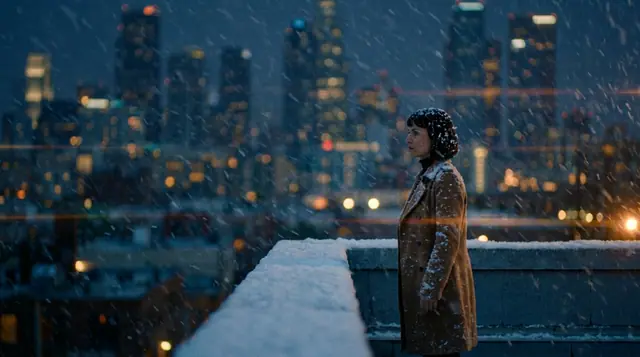
blog/tutorials·Sep 4, 2026·6 min·by the eroq team
Aspect ratios for AI video — widescreen, vertical or square
How to pick the frame for an AI video or image, how engines handle ratios natively or through the prompt, and what to choose for each channel.
Aspect ratio is the first setting people click past and the last one they can fix. Every other decision — the camera move, the light, where the subject stands — is made inside a rectangle you chose before you wrote a word. Get it wrong and you are cropping a wide shot into a phone frame at the end of the week, watching half your composition fall off the sides.
This is a short, practical guide to the ratios the studio offers, how engines actually treat them, and what to pick for where the thing is going.
The six video ratios
The video studio renders six formats:
- 16:9 wide — the default for anything that lives on a screen someone is not holding. YouTube, a website hero, a client deck, a festival submission.
- 9:16 vertical — TikTok, Reels, Shorts, anything scrolled with a thumb.
- 1:1 square — feed posts, ad placements that need to survive both crops, thumbnails that will be shown small.
- 21:9 letterbox — the cinema frame: a title sequence, a banner across the top of a site, anything that should read as film at a glance.
- 4:3 and 3:4 — the classic frame and its portrait twin: product demos and presentations on one side, portrait feed posts on the other.
The Seedance family renders all six natively. The other engines cover fewer, and when an engine lacks the ratio you picked, eroq renders its nearest native frame and folds the ratio into the prompt — so pick Seedance when a 21:9 or a 4:3 frame has to be exact. There is no "letterbox it later" setting because letterboxing later is just a crop, and a crop is a decision you should make while composing.
Images take five of those six — every one except 21:9: the image studio offers 1:1, 3:4, 4:3, 9:16 and 16:9. Portrait 3:4 is the one worth remembering — it is the classic character-portrait frame, and it is what you want for reference photos that will later hold a face.
If the term itself is new, the aspect ratio glossary entry is a one-minute read.
Native ratio versus prompt-steered ratio
Here is the part that explains most of the confusion.
Some engines take the aspect ratio as a real parameter. You ask for 9:16 and the model generates in 9:16 — the frame is the frame from the first denoising step, and the composition is built for it.
Other engines do not expose that parameter. On those, the studio folds the requested format into the prompt, so the model is told it is shooting vertically rather than being constrained to it. That usually works. It is not a guarantee. A model steered toward vertical will still occasionally hand you a composition that thinks it is wide.
Two consequences, both practical:
- Compose for the frame in words, not just in settings. Even on an engine that handles the ratio natively, naming the framing in the prompt makes the result more consistent. "Low tracking shot at knee height with the ceiling closing in overhead" survives any ratio pipeline; a bare setting does not.
- Check the first render before you shoot ten. If the format came back wrong on a prompt-steered engine, you will know from take one, and it costs one render to find out instead of ten.
The video docs list what each engine accepts, and the studio only shows you controls the engine you selected actually supports — a setting that is not there is not being silently ignored, it simply is not a thing on that model.
Composing for vertical
Vertical is not 16:9 turned sideways. It is a different shot language, and three rules cover most of it.
Put the subject in the middle third. The top of a vertical frame is where the platform puts a username and a caption; the bottom is where it puts the buttons. Your composition has to survive both. A face in the center third reads on every app.
Prefer depth to width. You have no horizontal room, so stage things front to back: subject close, one element mid-ground, one in the distance. This is why push-in, dolly and FPV moves read beautifully vertical and why a slow horizontal pan mostly reads as "something left the frame."
Pick camera moves that go up, down or forward. Crane up, pull-back, push-in, POV and tracking-from-behind all respect a tall frame. Whip pan and wide orbit fight it. The camera move glossary covers the full set if you want the inventory.
A complete vertical prompt, written the way the composer likes — one paragraph, subject, motion, camera, light, mood:
A skateboarder in a red hoodie rolls straight toward the camera down an empty parking ramp at golden hour, low tracking shot at knee height with the concrete ceiling closing in overhead, warm side light flaring off the columns, dust hanging in the air, confident and unhurried mood.
Note what that does: the subject moves toward the lens rather than across it, and the ceiling gives the top third something to do. That is a vertical shot on purpose.
What to pick, per channel
Pick by placement, not by habit. The Ads Studio works that way for ads: you tick where the static ads run and each comes at its place's size (1080 × 1350 for the Meta feeds, 1080 × 1920 for Stories, Reels and TikTok), and a video ad takes the frame of the place you pick, 9:16 for Stories, Reels and TikTok. For everything else, this grouping is a reasonable default:
- TikTok and Reels — 9:16. No exceptions worth arguing about.
- Feed posts — 1:1. It is the ratio that loses the least when a platform decides to crop it.
- YouTube and web — 16:9. Also the right answer for anything that will be embedded in a page or played on a TV.
- Product stills and character portraits — 3:4 or 1:1 in the image studio, since you are usually looking at a subject, not a scene.
- A key art still meant to feel like a film frame — 16:9 in the image studio; the 21:9 letterbox exists for video only.
If you are producing one campaign for several channels, do not render once and crop three ways. Render the same prompt in each ratio and adjust the framing language per render. It costs more credits and saves the campaign. In the Ads Studio you do not have to: tick several places and a batch renders each static ad once per size those places need. The AI ad generator page walks through the ad side of that, and social shorts covers the vertical-first workflow end to end.
One last habit
Set the ratio before you write the prompt, not after. The frame changes which words are worth writing — "wide shot of a valley" is a different instruction in 21:9 than in 9:16, and a prompt written for the wrong rectangle produces a technically correct render of the wrong image.
FAQ
Which aspect ratios can eroq render?
Video comes in six: 16:9 wide, 9:16 vertical, 1:1 square, 21:9 letterbox, 4:3 and 3:4 — native on the Seedance family, the nearest native frame elsewhere. Images take five of them: every one except 21:9.
Does changing the aspect ratio cost more credits?
Only in one case. Video credits are priced by engine and clip length, except that 21:9 is a bigger frame on Seedance 2.0, 2.0 Fast and 2.0 Mini and costs more per second there. An image costs the same at every ratio on a given model (10 credits on Krea2).
Why did my vertical render come back looking like a wide shot?
Because not every engine takes the ratio as a native parameter — on some, the format is folded into the prompt instead. Name the framing in the prompt itself, check the first render, and switch engines if the model keeps fighting the frame.
Pick your rectangle and shoot something. Open the video studio — new accounts start with 40 free credits.
 Video
VideoMake it in eroq
Shoot it in Video
Everything above happens in the studio: same engines, same settings, rendered on your click.
Prompts from this article
40 free credits · no card · private mode on every account