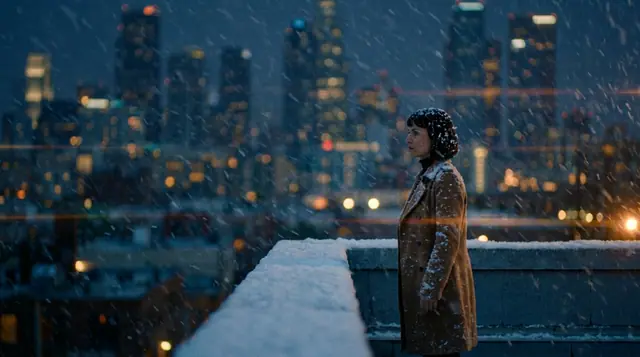
blog/tutorials·Sep 4, 2026·6 min·by the eroq team
Image to video AI, step by step — animate a photo or a Character
Animate a reference photo or a Character in eroq — pick the right engine, use first and last frames on Seedance, write prompts that describe motion only.
Text-to-video asks the engine to invent everything: the subject, the framing, the light, and then the motion on top. Image-to-video takes the first three off its plate. You hand it a still that already looks right and ask for one thing — make it move. It is the most controllable way to get a specific face, product or composition into a clip, and it is the workflow behind most of the "how did they keep that consistent" videos you have seen. Here is how it works in the eroq studio, from source image to finished clip.
Where the source image comes from
The Video tool accepts a reference image from three places:
- A photo you upload. Any still you have the rights to use. Anyone in it must be fictional and 18 or older — the studio does not animate real, identifiable people without their consent, and that rule is enforced at the account level.
- A Character. A saved Character carries reference photos, so writing its @Name in the prompt hands the engine the face you have already approved.
- A render from your Library. Every image you generate is saved automatically. The Animate button on an image card sends it to the Video tool as an image-to-video source, with the original recipe one click away under Remix.
If you do not have the still yet, make it first in the Image tool: Krea2 for photoreal, Anima for illustration, or another of its 13 models, from 10 credits per image, batch 1 to 4, and you can pin a face with reference photos there too. Generating the still separately is cheaper than re-rolling a video until the framing is right — a 5-second clip costs 145 credits on Motion One, an image costs 10.
Choosing an engine
Image-to-video uses the same engine picker as text-to-video, and the trade-offs are the same:
- Motion One is available to every account, including free, and is the uncensored engine. 5 to 15 s, 145 credits for 5 s and 290 for 10 s.
- Seedance 2.5 goes from 4 to 30 s at up to 720p, honors a seed and, like the rest of the Seedance family, takes a first and a last frame (more below). 490 credits per 5 s, Creator plan and up.
- Seedance 2.0 Mini, Fast and 2.0 cover 4 to 15 s with a seed; Mini is the budget option at 75 credits per 5 s on every account.
- Kling 3.0 is known for fluid motion and faces. Hailuo 3 for cinematic physics and dramatic light. Veo 3.1 Fast renders 4, 6 or 8 s with native sound. Kling 3.0 and Veo 3.1 Fast are Hobby and up; Hailuo 3, Creator and up.
Length is also capped by your plan — 10 s free, 15 s Hobby, 20 s Creator, 30 s on Studio and above. For a portrait or a product turn, 5 s is usually enough; save the long clips for slow camera moves where the still can carry the frame.
Write the prompt for motion, not for the picture
This is the part most people get wrong. The photo already tells the engine who is in the frame, how it is lit and where the camera stands. If your prompt re-describes all of that, you give the engine permission to drift from the still — a different jacket, a warmer light, a face that is almost hers. Describe what moves and nothing else.
A complete motion-only prompt for a portrait:
She slowly turns her head toward the window and exhales, a strand of hair lifting in the draft; slow push-in on a soft portrait lens, the curtain behind her swaying once, dust drifting through the shaft of window light, calm and unhurried, nothing else in the frame moves.
Notice what is missing: no description of her face, clothes or the room. Three things are present — the subject's motion, the camera's motion, and the tempo. That is the whole recipe.
A few rules that follow from it:
- One camera move per clip. Write it in the prompt or insert it from the Syntax menu (Push-in, Orbit, Slow pan and the rest); the composer highlights the directions it recognizes, like "dolly" or "wide shot".
- Name the tempo. Calm, Dreamy, Dynamic, Tense or Chaotic, as a word in the prompt (in Cinema, Tempo is a setting of the Look panel). Without it, engines tend to over-animate.
- Say what stays still. "Nothing else moves" is a legitimate instruction and a useful one.
- Use the negative prompt on engines that support it for the drift you keep seeing — "extra fingers, warping text, changing hairstyle".
- Lock the seed on Seedance when a take is close: same seed, small prompt change, and you get a variation instead of a reroll.
First and last frame on Seedance
The Seedance family — 2.5, 1.0 Pro and 1.0 Lite — accepts two stills instead of one: a first frame and a last frame, and it interpolates the motion between them. That turns image-to-video from "animate this" into "get from here to there", which is a different tool.
It is the move for reveals and transformations: a product closed, then open; a room empty, then full; the same character at the door, then at the window. Two things make it work. Keep the frames consistent — same subject, same framing, same light, ideally two images from one batch or two frames from one clip — and describe only the transition in the prompt, in the same motion-only register as above. The first/last frame glossary entry has the mechanics; the short version is that mismatched frames give you a morph, and morphs are rarely what you wanted.
Mistakes worth skipping
- Busy stills. A source image with six people and a crowd will animate six people and a crowd, badly. Give the engine one subject.
- Describing the past. "A woman who has just walked in" is a backstory, not a motion. "Walks in from the left and stops" is a motion.
- Fighting the frame. Asking a portrait to become a wide shot is asking the engine to invent a room. Use Pull-back for a little air, or generate the wide still and animate that.
- Re-rolling instead of re-stilling. If the framing is wrong, fix the image. It is 10 credits.
Failed renders refund themselves, and every clip is saved to your Library with its source and recipe, so the loop is cheap to iterate: still, motion prompt, take, adjust.
FAQ
Which engine should I start with for image-to-video?
Motion One if you are on the free tier or need uncensored output; Seedance if you want first/last frames or a seed, 2.5 when you also need up to 30 s; Kling 3.0 when the clip is mostly a face.
Can I animate a Character directly?
Yes. Write its @Name in the prompt and its picture rides along as a reference, so the clip keeps the face you approved.
Does the prompt need to describe the person in the photo?
No — and it should not. The still carries the subject; the prompt carries the motion, the camera and the tempo.
Have a still that deserves to move? Open the Video tool and drop it in, or read the image-to-video overview first.
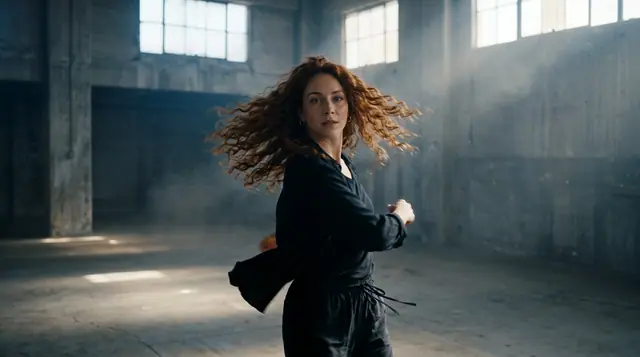 Video
VideoMake it in eroq
Shoot it in Video
Everything above happens in the studio: same engines, same settings, rendered on your click.
Prompts from this article
40 free credits · no card · private mode on every account