blog/tutorials·Sep 10, 2026·8 min·by the eroq team
Make a UGC ad with AI in 10 minutes: an Ads Studio walkthrough
Make a UGC video ad in the eroq Ads Studio: your product as an Element, the UGC testimonial format, a presenter, a line Clap writes and a few takes.
UGC-style ads work because they look like a person, not a brand. That is also why they are expensive to make the traditional way: you need a person, a kitchen, a phone, an afternoon and a second afternoon when the first one did not land. The eroq Ads Studio compresses that into a brand, a format and one spoken line. Ten minutes is the budget for your part (setting up, picking and writing), not a promise about render queues. Here is the walkthrough.
Minute 0 to 2: a brand, and the product as an Element
Every ad in the Ads Studio is made inside a brand, so the first two minutes go there. Paste your website and Clap, eroq's agent, reads it in about a minute: it fills a brand kit (name, logo, palette, fonts, tagline, tone of voice, selling points, audience) and offers the products it finds, from a Shopify or WooCommerce store feed or your product pages. Keep the one this ad sells, check the kit, create the brand. No website, or a product the site does not show? Fill the kit by hand and add the product in the brand's Products tab: "Add product" takes its page link or photos. Reading the site and saving the brand cost nothing.
Each product becomes an Element: a reusable object with a name, a description and its photo, filed in the brand's folder on the Elements page alongside places and styles (up to 50 per account). The photo is what makes the bottle in the clip your bottle, not a generic one.
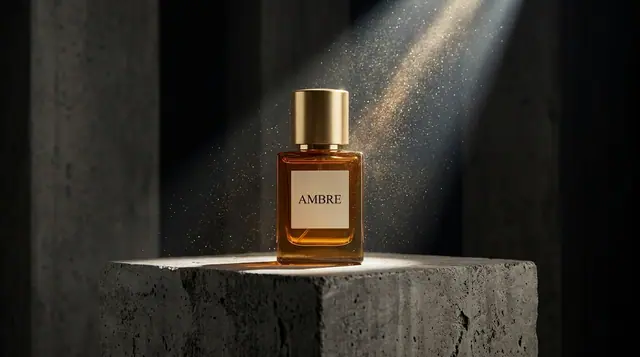
Two checks before you move on. The photo should be clean: plain background, label readable, straight on. And the description should read like packaging copy, because engines read it to draw the product: what it is, the color, the material, the one visual detail that has to survive ("gold cap, frosted glass"). Describe how it looks, not what it does.
Minute 2 to 4: the format and the presenter
In the brand, open Create and switch to Video ads. The page is four numbered cards:
- Where will it run?: Stories & Reels, TikTok, YouTube Shorts, YouTube, a feed, Snapchat, Pinterest, LinkedIn or X. The place sets the clip's frame: 9:16 for TikTok, Reels and Stories, 16:9 for YouTube. A 9:16 render cropped to 1:1 loses the top of the head and the bottom of the bottle, so render the aspect ratio of the place you will post first.
- Product: the Element you just filed (or the brand itself, for an ad about the brand).
- Format: eight ad formats, from Product hero to Street interview, plus Custom when you would rather describe the whole shot. This walkthrough uses UGC testimonial: a casual, handheld, selfie-style clip of someone holding the product up to the camera in natural window light. The AI ad generator page shows them all. (Clicked the UGC testimonial tile on the Ads Studio home before you had a brand? The format waited and is already picked.)
- Presenter and words: who is on screen and what they say.
The format brings the UGC look on its own, handheld framing included, so there is no rack to set. What it needs from you is a face. The presenter is one of your own Characters, built from photos; its look sheet keeps the same face across every take and every ad. If you have none yet, leave the presenter on Auto for this first ad and the format casts "a delighted customer", a different stranger each time, then build your presenter later at /studio/characters/new. Either way the person is fictional: you are not putting a real creator's face on an endorsement they did not give, and the studio will not render real, identifiable people without consent.
Minute 4 to 6: the line, and a direction
Pick the language the ad speaks (14 are offered) and press Write with Clap. Clap reads the kit and the product and writes four spoken lines, each on its own angle: a hook, a benefit, a reaction, and an offer only if your selling points state one. Clap is told to use only facts from the kit, never an invented price or statistic; read the line anyway before you render it. More lines writes four new ones. Click the one that sounds like a person, or type your own, up to 160 characters.
Then the Direction, optional: a setting, a mood, a moment. "Bright kitchen, dabs two drops on the back of her hand, turns the label to the camera" is plenty. See the prompt shows what the engine will receive. With a presenter named Maya and a product called Glow Serum, it reads:
Casual handheld selfie-style clip, Maya holds Glow Serum up to the camera and talks about it excitedly, natural window light, authentic creator energy. Bright kitchen, dabs two drops on the back of her hand, turns the label to the camera. Glow Serum looks exactly like its reference picture, same shape, colors and label, clearly visible. Maya says to camera: "Okay, two drops and my skin looks like I actually slept."
The product's description and the kit's look (its aesthetics and palette) are added after it. You did not write a paragraph: you picked a product, a format and a face, chose a line and added one phrase of direction.
Minute 6 to 9: settings, takes, pick one
The panel on the right holds the settings, as in the Video tool:
- Engine. The studio starts on one that speaks and sees the product photo; on a first visit that is usually Veo 3.1 Fast, or Veo 3.1 if your plan opens it. Seedance engines refuse photos of real-looking people as references: with a presenter cast, the studio says so and offers a switch.
- Duration. Whatever the engine and your plan allow. Veo renders 4, 6 or 8 seconds, and a line of fifteen words wants the full 8.
- Sound on, so the line is spoken. Open on the product photo makes the product shot the clip's first frame.
- Takes. 1 to 4.
Each take is a separate render of the same brief, and with UGC the differences between takes (a better grin, a cleaner label turn) are the whole game. The Generate button shows the cost before you press it, and each take is billed as it starts:
- Veo 3.1 Fast, Hobby and up: 344 credits for an 8-second take with sound.
- Kling 3.0, Hobby and up: 270 credits for 5 seconds with sound, and it renders square too.
- Veo 3.1, Creator and up: 1,352 credits for 8 seconds with sound.
- Seedance 2.0 Mini, on every account: 75 credits for 5 seconds with sound. It sees the product photo but refuses a presenter's face, so pair it with Auto.
- Motion One, on every account: 145 credits for 5 seconds. Its sound is baked in, but it does not speak your line, and it opens on the product photo rather than reading it.
Three 8-second takes on Veo 3.1 Fast come to 1,032 credits. Failed takes refund themselves, so a bad take costs you nothing but the wait. Pick the winner. If none wins, change one thing (a word of the direction, or another of Clap's lines) and run two more takes rather than four identical retries.
Minute 9 to 10: download and ship
Every take lands in the brand's own Library folder (the panel's "Save to" always points there) and in the History tab next to the settings, with its full recipe. The "export" is a download: eroq does not upload to TikTok's or Meta's ads managers, so the file goes into your ads manager by hand, and the testing happens there. Two things worth doing before you post:
- A voice-over, if the line was not spoken. Motion One bakes in its own sound but does not say your line. Render it in the Voice tool with Aria or Orion or your own cloned voice (Voice Turbo at 2 credits per 100 characters is plenty for ad copy) and lay it under the clip in the Editor, where your voice lines wait in the Audio tab.
- Variants. Once a take works, the brand's Multiplier tab (Ad Multiplier) turns it into 3, 6, 9 or 12 variants, each with a new character, outfit, location or product, while the motion, the cut and the original sound stay. Each variant is an edit of the same clip, at 13 credits per second of clip. Or go back to Create, move the kitchen to a bathroom shelf and render two more takes. One product, many ads.
The UGC ad generator page sums up the flow, the UGC ads use case has more prompt scaffolds by product category, and the product videos use case covers the non-testimonial formats.
Set a timer and open the Ads Studio.
FAQ
Do I need a product photo, or can I describe the product?
Add the product with a photo. In the Ads Studio it becomes an Element filed under your brand, and an engine that reads pictures keeps it as it is on its photo. An engine that reads words only gets the description, and a described product is a generic product; a referenced one is yours, label and all.
Do I need a Character to be the presenter?
No. Leave the presenter on Auto and the UGC testimonial format casts "a delighted customer", a different stranger each time. A Character, built from your photos with a look sheet, keeps the same face across takes and ads, which matters once a presenter starts to work.
Which format should I render first?
The one you will post first. Pick its place under "Where will it run?" and the frame follows: 9:16 for TikTok, Reels and Stories, 16:9 for YouTube. Re-render for a second placement rather than cropping.
Can the ad have sound?
Yes. The Ads Studio starts on an engine that renders sound with the picture, so the presenter says the line in the clip, in the language you picked. On an engine that does not speak lines, such as Motion One, the line is left out: generate the voice-over in the Voice tool and combine the two in the Editor.
 Ads Studio
Make it in eroq
Make the ad in Ads Studio
Everything above happens in the studio: same engines, same settings, rendered on your click.
Prompts from this article
40 free credits · no card · private mode on every account